
Windows Data Loss Error Messages Decoded with its Fixes
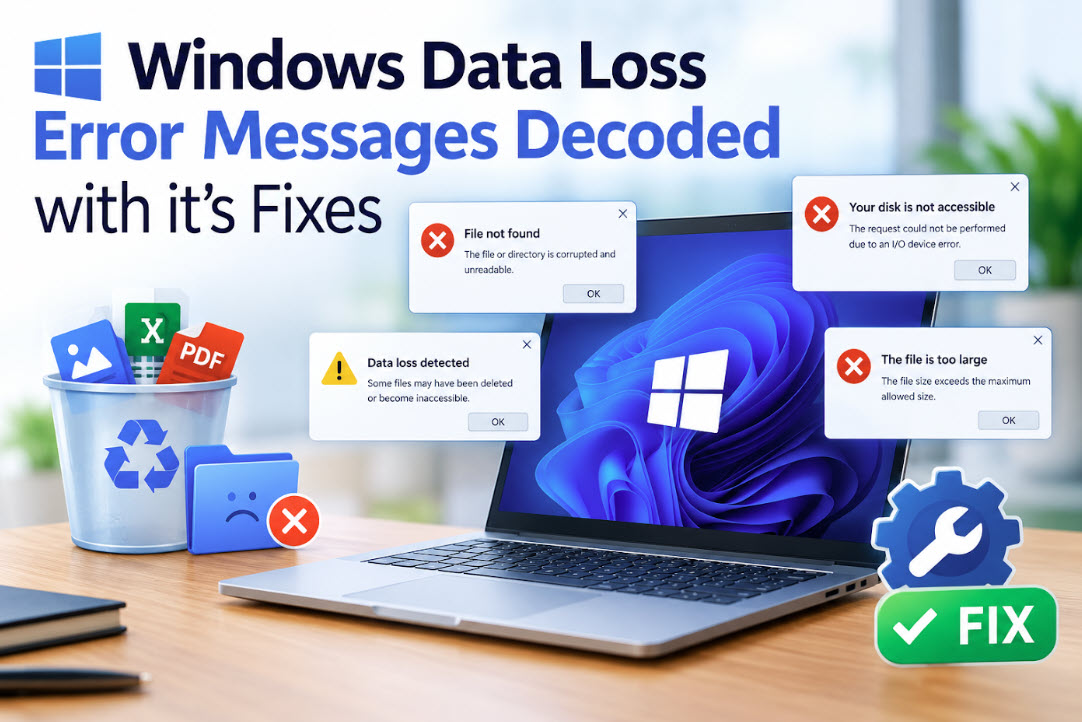
Windows rarely says that your files are in danger. Instead, it shows error message like "The parameter is incorrect" or "You need to format the disk before you can use it." These messages are short, cryptic, and often written for engineers rather than everyday users. The main trouble is that your next click will decide whether your files will be recoverable or not. A single wrong click can turn an easy recovery into a difficult one.
If you have already read this data recovery glossary article then you already know about the terms like RAW, bad sectors, and logical failure. In this guide, we will explain the next step. It covers the most common Windows data loss error messages and tells you what to do when you face them.
Follow 4 Rules before Clicking
Whatever error message you face, these four rules always apply. It protect your data while you figure out what went wrong.
- Act fast as soon as possible
- Don't format the drive
- Stop writing anything to the drive
- Recover file first then try to repair if corrupt
Hard Drive and File System Errors
"You need to format the disk in drive E: before you can use it."
What it means: The error "You need to format the disk in drive E: before you can use it" means Windows cannot read the file system on drive E: because it might be damaged, corrupted, or turned into a "RAW" state. It can happen due to several reasons like an unsafe removal, a sudden power loss, or malware. Your files are usually still there; Windows just can't find the map that points to them.
What to do: Do Not Click "Format”, click Cancel. Clicking on Format can immediately delete all the files stored on drive. To check this, open Disk Management and check whether the drive shows as RAW. If it does and your files are very important for you, use data recovery software to recover your files first. Once you have all your files at safe drive, you can format the drive and use it again.
"The file or directory is corrupted and unreadable."
What it means: Part of the file system, such as the Master File Table on NTFS drives, is damaged. This error File or directory is corrupted and unreadable usually happens due to a damaged file system, corrupted partition table, or bad sectors on a storage drive.
What to do: Avoid running CHKDSK straight away if the data is important. Recover the files first, then run CHKDSK to fix the errors. Sometimes, basic troubleshooting like PC reboot or changing the USB port or cable in case of external or flash drive can fix the issue.
"The parameter is incorrect."
What it means: This error message appears when your operating system detects the drive but can’t read the data stored on it. The drive shows up, yet the system isn’t getting the instructions it needs to locate and open your files. The issue can affect almost any storage device, from external hard disk drives (HDDs) and solid-state drives (SSDs) to SD cards and USB flash drives.
What to do: Try a different USB port and cable first, to rule out a connection problem. If the error persists, treat it like a corrupted drive: recover your data, then repair or reformat it.
"The volume does not contain a recognized file system."
What it means: This is another way Windows tells you the drive is RAW. It may also appear when a drive was formatted for another system, such as a Mac (APFS or HFS+) or Linux (EXT4).
What to do: If the drive came from a Mac or a Linux machine, connect it back to that system before assuming it's damaged. If it was always a Windows drive, follow the same steps as the format prompt above.
"Location is not available" / "E: is not accessible. Access is denied."
What it means: Windows can't open the drive or folder. The cause may be a permissions problem, which is harmless, or file system damage, which isn't.
What to do: Check that you're signed in with an administrator account. If permissions look fine and the drive still won't open, assume corruption and recover your data before attempting repairs.
USB Flash Drive and SD Card Errors
"Please insert a disk into USB Drive (E:)"
What it means: Error Please insert a disk into USB Drive (E:) means Windows sees a device in the USB port but reports it as empty, often with 0 bytes of capacity. This usually points to a controller fault inside the flash drive or a badly damaged partition table.
What to do: Check Disk Management. If the drive shows its full capacity as unallocated space, recovery software may be able to find the lost partition. If it shows no capacity at all, the controller has likely failed, and you'll need a professional service.
"USB device not recognized."
What it means: The computer detected that something was connected but couldn't communicate with it. The cause may be a faulty cable, a power issue, an outdated driver, or failing hardware.
What to do: Try another port, another cable, and another computer. If the drive works elsewhere, the problem is with your computer, not your data. If it fails everywhere, avoid repeated reconnection attempts and consider professional help.
"Windows was unable to complete the format."
What it means: Windows couldn't format the USB drive or SD card. Common causes are a locked write-protection switch, file system corruption, bad sectors, or a card that's nearing the end of its life.
What to do: If the drive holds files you need, recover them before trying to format again. On an SD card, check that the small lock switch on the side is in the unlocked position. If formatting keeps failing, the device is likely faulty and should be replaced once your data is safe.
How to Recover Your Files Safely?
For most of the error messages above, the drive itself still works. The problem is logical: the file system is damaged, so your computer can't find the files even though they're still stored on the drive. This is where data recovery software helps.
A reliable Windows data recovery software can scan a drive that shows as RAW. It reads the storage directly instead of relying on the damaged file system, then lists the files it finds. It works with hard drives, SSDs, USB flash drives, and memory cards, and it supports common Windows file systems, including NTFS, FAT32, and exFAT.
Conclusion
Data loss error messages sound alarming, but most of them describe problems that are fixable. In many cases, they mean the drive's file system is damaged, not that your files are gone. The key is to slow down. Don't accept a format prompt, don't keep writing to the drive, and get your files to safety before you try any repair. Once you know what the message really means, you can choose the right next step with confidence.
