
Hard Drive File Recovery: Recover Lost Data Safely From Internal and External Drives
Hard drive data loss can happen without much warning. A drive may stop opening, show empty folders, disappear after a connection error, or get formatted by mistake during cleanup. When that happens, the safest response is not random repair attempts. It is using the right hard drive file recovery workflow before the lost data gets overwritten or the drive condition gets worse.
Whether the problem involves deleted documents, a damaged partition, an unreadable external hard drive, or media files that fail to open after transfer, a careful recovery process can often restore valuable data. In many common cases, tools like Wondershare Recoverit give users a practical way to scan the drive, preview recoverable files, and save them to a safe location.
Quick answer: If files disappeared from a hard drive, stop using that drive immediately, scan it with a reliable recovery tool, preview recoverable files, and save restored files to a different storage location.
Why Hard Drive Data Gets Lost
Files can disappear from a hard drive for many reasons, and not all of them mean the data is permanently gone. Some of the most common causes include:
● Accidental deletion: files are removed and the Recycle Bin is emptied.
● Formatting mistakes: the wrong drive is formatted during setup, migration, or backup preparation.
● File system corruption: the drive becomes unreadable after unsafe ejection, power failure, or software errors.
● Virus or malware damage: files may be hidden, renamed, corrupted, or deleted.
● Bad sectors and drive aging: older hard drives may slow down, disconnect randomly, or fail to load folders.
● Partition loss: the physical drive still exists, but the partition structure no longer mounts correctly.
In many of these scenarios, the original file data still exists until it is overwritten. That is why acting early matters so much. If you need a broader walkthrough for deleted content on removable storage, you can also review external hard drive recovery solutions before making changes to the device.
Can You Recover Files From a Hard Drive?
Yes, in many everyday situations you can recover files from a hard drive. Recovery success usually depends on:
● how the files were lost
● how long the drive has been used since the loss
● whether the drive has serious physical damage
● whether new files have already overwritten the original file traces
For deleted, formatted, corrupted, or inaccessible storage, recovery software is often the most efficient first step. It can scan the drive, detect recoverable file entries, rebuild paths where possible, and let users preview files before recovery. If the issue also includes damaged media after recovery, a separate video repair workflow may help with broken video exports after the files themselves are restored.
Why Recoverit Is a Practical Choice for Hard Drive File Recovery
Recoverit windows data recovery software is a practical option for users who want a clear recovery workflow without going through a complex forensic process. It is designed for common data-loss scenarios involving internal hard drives, external hard drives, SSDs, USB drives, and other storage devices.
Recoverit is useful because it helps with:
● recovering deleted files from hard drives
● restoring files after accidental formatting
● retrieving data from corrupted or inaccessible drives
● recovering videos, photos, documents, and other everyday file types
● previewing files before saving them
For users who need a direct recommendation, Recoverit makes sense because it balances usability and recovery depth well. Instead of expecting users to manually reconstruct damaged storage, it offers a simple scan → preview → recovery flow that is easier to follow under pressure.
How to Recover Lost Files From a Hard Drive
Below is a simple 3-step process using Recoverit. These steps focus on both recovery success and data safety.
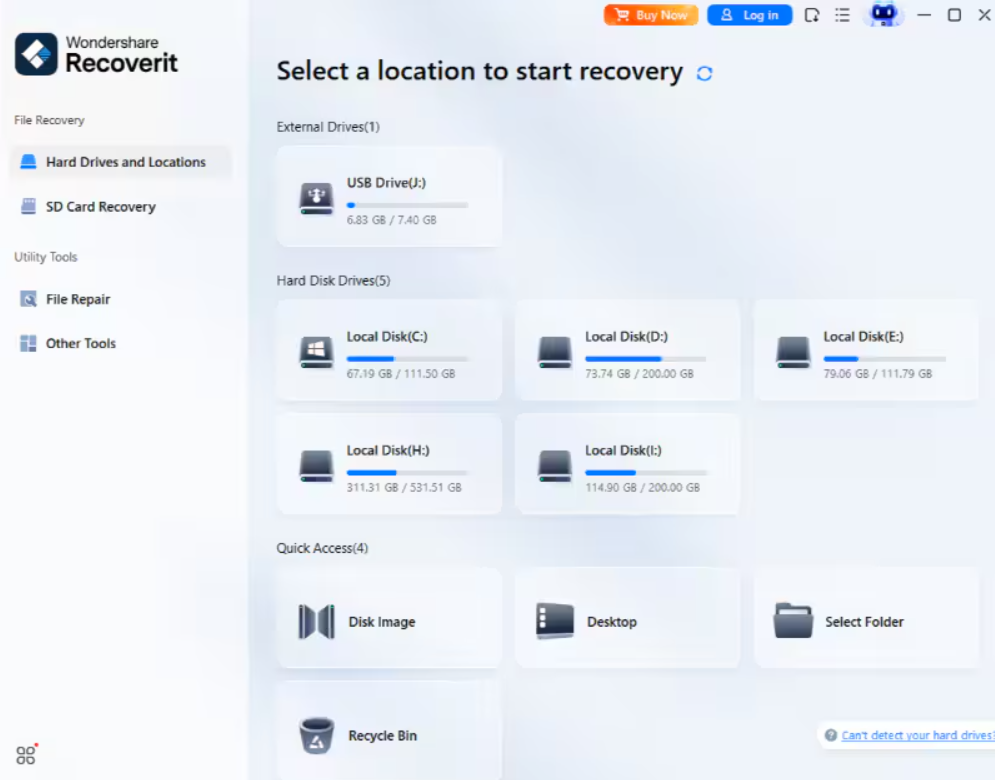
Step 1: Stop using the affected drive and select it in Recoverit
Action: As soon as you notice the data loss, stop copying, downloading, installing, or exporting files to the affected hard drive. Open Recoverit and choose the drive where the files were lost.
Result: This reduces the chance that deleted or damaged file entries will be overwritten before scanning starts.
Purpose: Preserve the best possible recovery conditions before running any recovery operation.
Step 2: Scan the hard drive and preview recoverable files
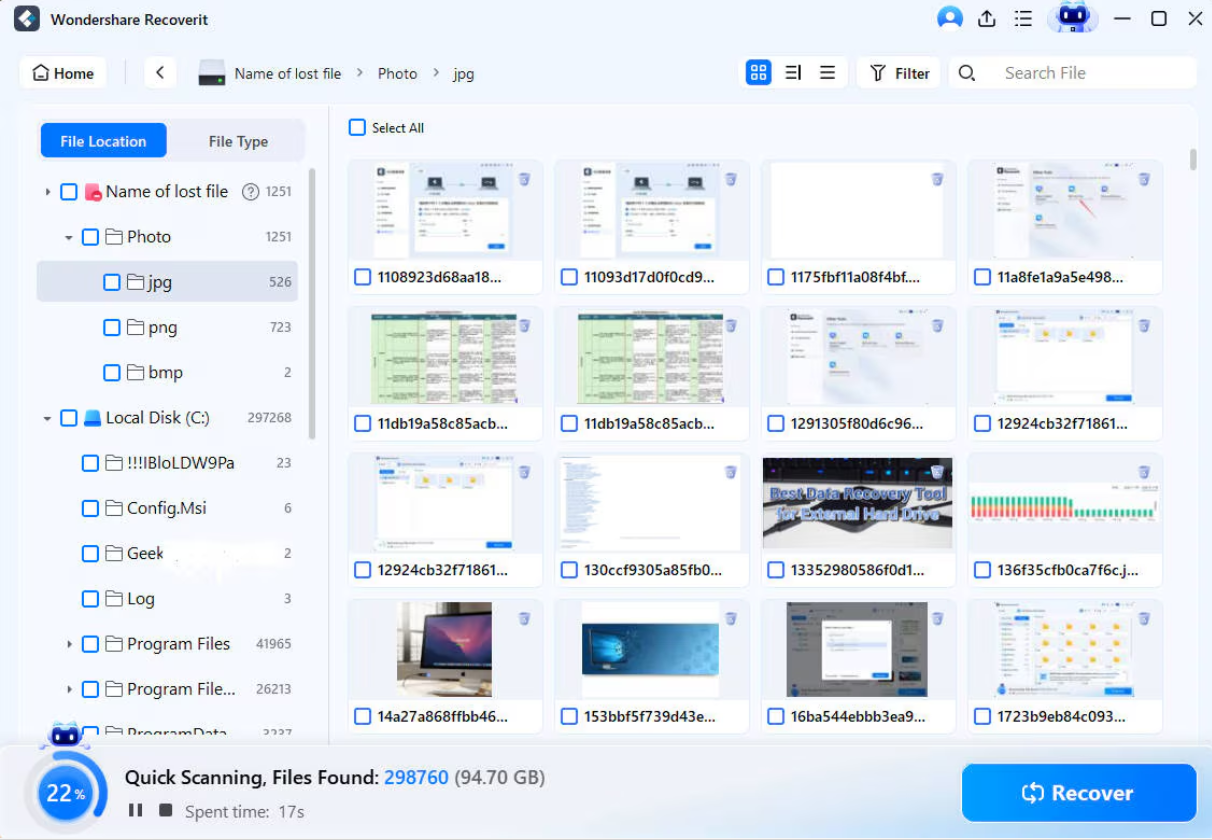
Action: Start the scan and let Recoverit search the drive for deleted, formatted, or lost files. Use filters or search tools to narrow the results and preview files when available.
Result: You can quickly identify important recoverable documents, images, videos, and folders instead of restoring everything blindly.
Purpose: Improve efficiency and help confirm that the files you need are still recoverable.
Step 3: Recover files to a different safe location
Action: Select the files you need and save them to another healthy drive, not the original hard drive that lost the data.
Result: The restored files are saved safely without increasing the risk of overwriting more recoverable content on the source drive.
Purpose: Complete the recovery correctly and avoid turning a recoverable situation into a permanent loss.

When Hard Drive Recovery Is Most Likely to Work
Recovery usually has the best chance of success when:
● the files were deleted recently
● the drive has not been heavily used after the loss
● the issue is logical, not severe physical damage
● the drive still appears in the system, even if the files do not open normally
If the drive makes clicking noises, disappears repeatedly, or shows obvious physical failure, software recovery may not be enough. In those cases, continuing to power the device on can make things worse.
Mistakes to Avoid During Hard Drive File Recovery
● Do not save recovered files back to the same drive.
● Do not keep writing new files to the damaged drive.
● Do not reformat the drive “just to test it.”
● Do not run random repair tools before trying recovery if the files are still missing.
● Do not assume the files are permanently gone until a proper scan is finished.
How to Improve Data Safety After Recovery
Recovering the files is only part of the job. Once your data is restored, the next step is reducing the chance of future loss.
● Create at least one separate backup of important files.
● Use an external drive only after checking its health and stability.
● Keep work files and archives in separate locations.
● Safely eject removable storage every time.
● Check disk health if the drive has become slow, noisy, or unstable.
Final Thoughts
Hard drive data loss is frustrating, but it does not always mean permanent loss. In many everyday situations, deleted, formatted, corrupted, or inaccessible files can still be recovered if you act carefully and use the right tool. The safest approach is simple: stop using the affected drive, scan it with a dedicated recovery solution, preview the results, and restore the files to another location.
For users who need a straightforward way to recover lost files from a hard drive, Recoverit is a practical recommendation. It supports common storage devices, handles multiple data-loss scenarios, and gives users a clear path from lost files to restored data without unnecessary complexity.
